 Read Aloud Extension
Free Chrome extension
Listen to any web page
Read Aloud Extension reads articles and PDFs out loud in Chrome. The sentence being spoken is highlighted and the current word is marked, so you can follow along or look away.
No account and no word limits. Works in Chrome on Windows, macOS, Linux and ChromeOS.
Try it here
This paragraph can read itself
Press play in the player below
Press play and this paragraph reads itself out loud. The sentence being spoken is tinted, and the word you hear is marked a shade darker. The extension does the same on any article you open in Chrome, with the voices already in your browser.
Uses the voices built into your browser.
What it does
A small player appears in the corner of the page and reads the text where it is. Nothing is copied into another window.
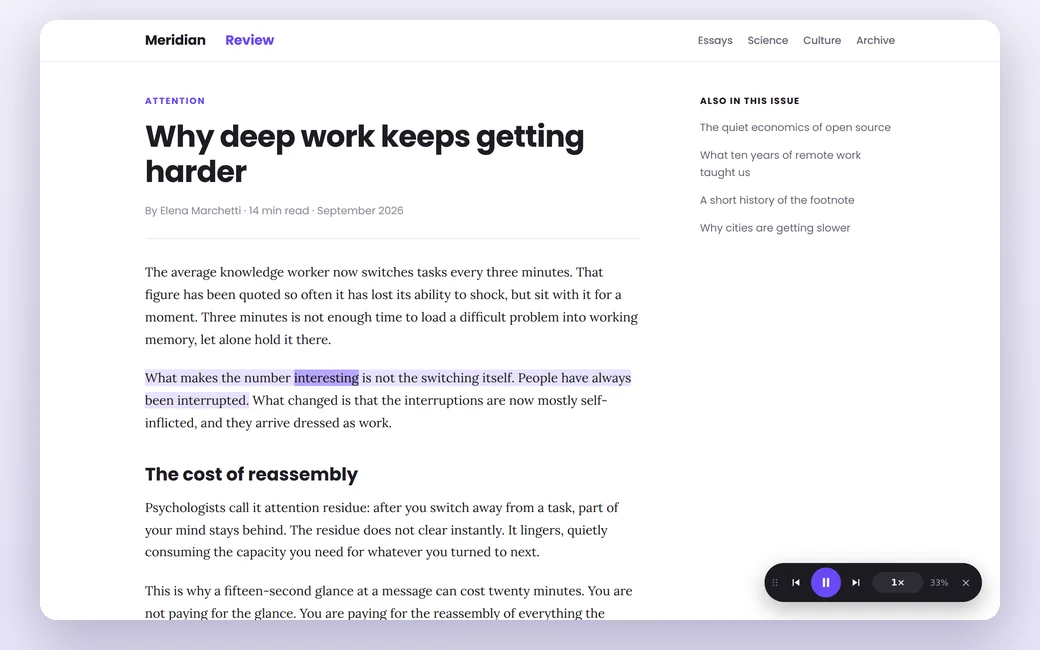
Follow along while it reads
The sentence being spoken is tinted and the current word is marked. The page scrolls with the voice and stops following while you scroll yourself.
Menus, sidebars, footers and cookie notices are skipped, so listening starts at the article.
Start exactly where you want
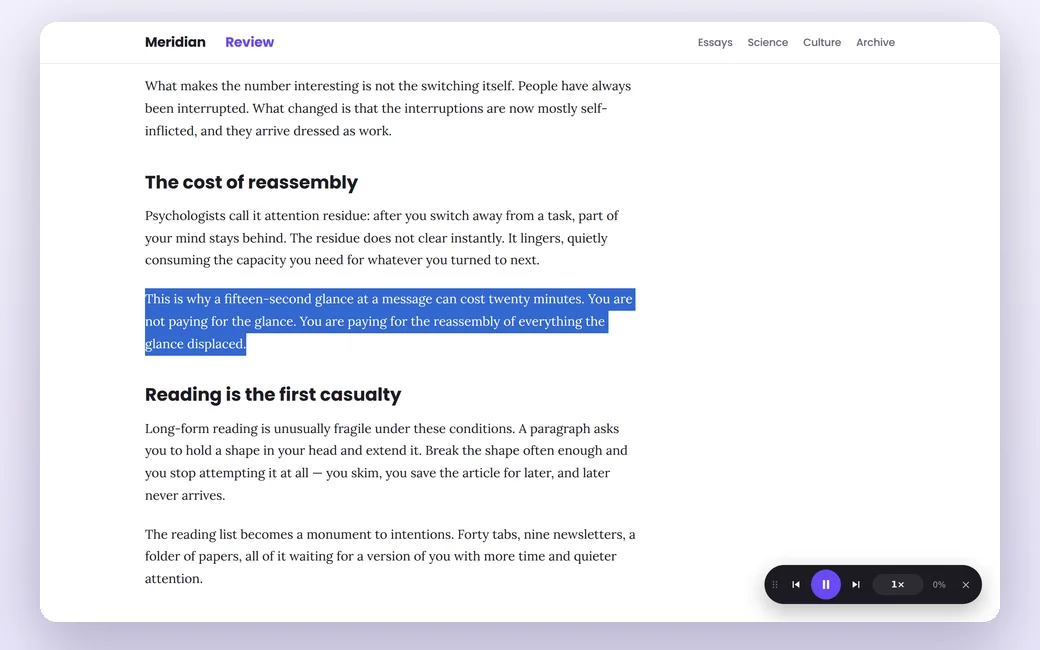
Hold Alt and click any paragraph to start reading from there. To hear one passage, select it, right-click and choose Read selected text aloud.
Settings let you start at the top, at the first visible paragraph, or at the first paragraph after the headline.
PDFs open in their own reader
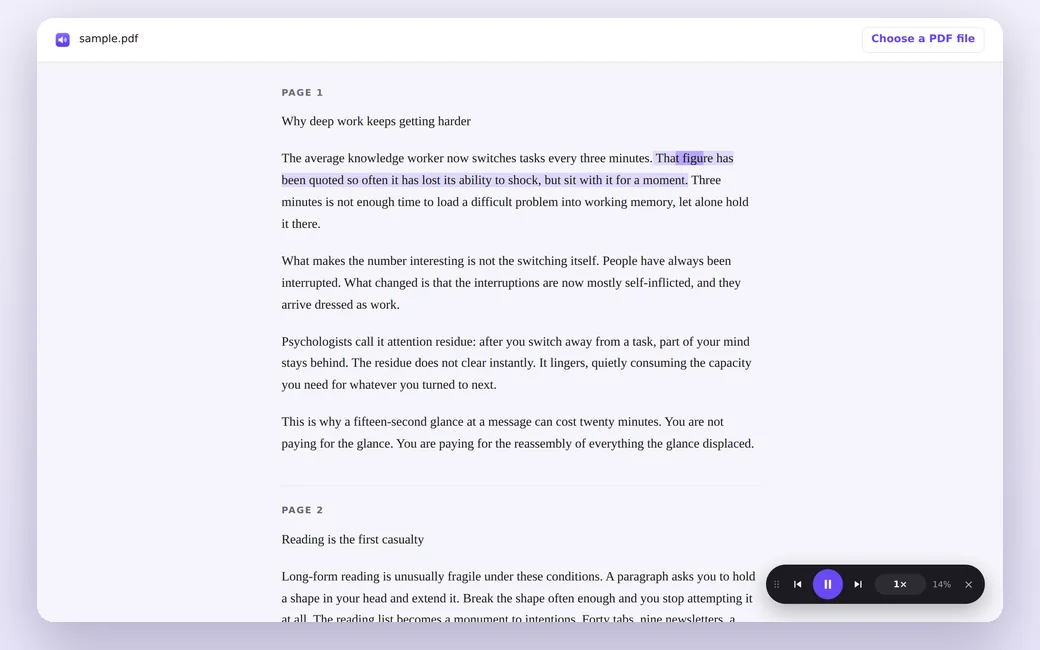
Chrome's PDF viewer keeps the text out of reach of extensions. Read Aloud opens the PDF in its own reader, lays the text out as paragraphs and reads it with the same voices and highlighting.
The file is processed in your browser and never uploaded.
Your voices, your pace
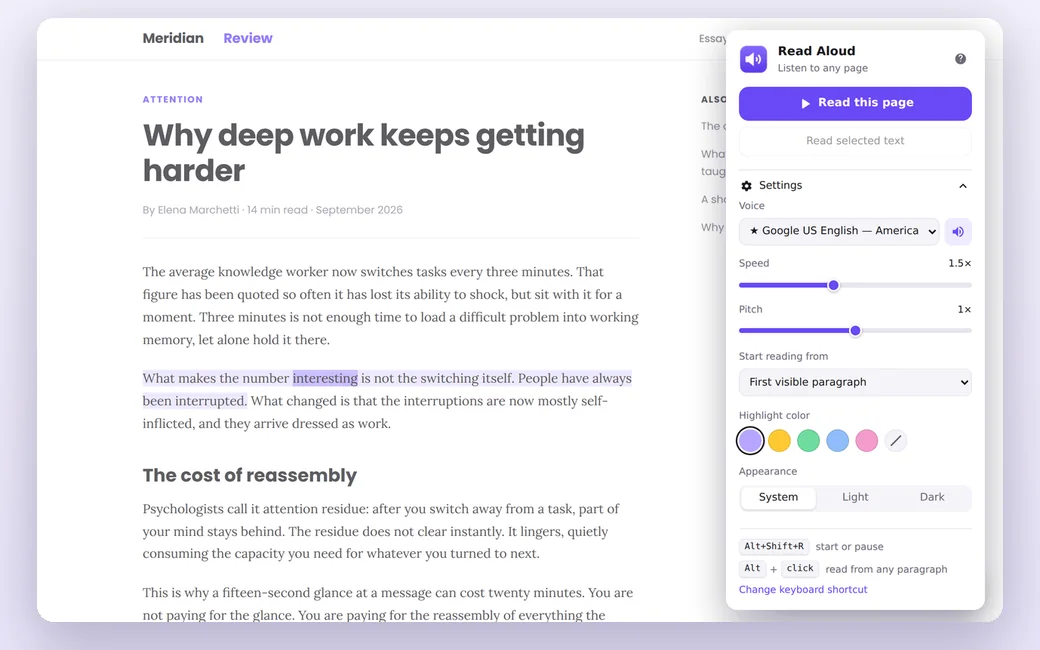
Voices are grouped by language and the most natural ones are starred. On Auto, the page language is detected and matched to a voice.
Speed goes up to 3×. Voices marked ☁ are Google's cloud voices; the rest work offline.
Ways to start listening
Use whichever is closest to your hand.
Toolbar button
Click the Read Aloud icon, then Read this page.
Alt + click
Click any paragraph with Alt held down to start right there.
Right-click a selection
Choose Read selected text aloud to hear just that part.
Keyboard shortcut
Start and pause without the mouse. Set your own keys in Chrome's extension shortcuts.
What you read stays with you
There is no account and no server behind Read Aloud. Page text is gathered in your browser, handed to the speech engine and dropped when you stop.
Guides
Short answers to the questions people ask before they install.
Questions
All the details in one place: product facts.
Is it free?
Yes. There is no account, no trial and no limit on how much you listen to. It reads with the voices already available in Chrome and on your computer.
Why does the voice sound robotic?
The voices come from Chrome and your operating system. Open the voice list and pick one marked with a star. The Google voices marked ☁ usually sound the most natural; they need an internet connection.
Does it work offline?
Yes, with any voice that has no ☁ mark. Those run on your computer.
Which languages can it read?
Any language you have a voice for. On Auto, the language of each page is detected and matched to a voice. The interface itself is translated into 52 languages.
Can it read Google Docs?
Not at the moment. Google Docs draws its text on a canvas, so there is no page text for the extension to pick up.
Where does it not work?
Chrome does not let extensions run on its own pages (chrome://), on the Chrome Web Store, or on other extensions' pages. Scanned PDFs have no text layer and cannot be read.
Try it on the next article you open
Install, open any page, press play.