 Read Aloud Extension
How to Make Chrome Read a Page Aloud
Two built-in options and one extension, how each works, and which one fits.
There are three ways to have Chrome read a page out loud. Two are built into Chrome and need no installation. The third is an extension that reads on the page itself and also handles PDFs and selected text. Here is how each one works and when it fits.
1. Reading mode, built into Chrome
Reading mode shows a simplified copy of the article in Chrome's side panel and can read it aloud.
- Right-click the page and choose Open in reading mode. You can also find it under the three-dot menu, More tools, Reading mode.
- Press Play at the top of the reading mode panel.
According to Google's help page, reading mode downloads Google's natural voices for your language automatically, highlights by word or sentence, and lets you change the playback speed. The shortcut is Alt + Shift + R on Windows, Linux and ChromeOS, and ⌘ + Option + R on a Mac.
2. Listen to this page, built into Chrome
Newer versions of Chrome on desktop and Android have a Listen to this page item in the three-dot menu. It opens a small player bar at the bottom of the window.
- Open an article or another page with a lot of text.
- Click the three-dot menu in the top-right corner and choose Listen to this page.
- Press play in the player bar.
The option does not appear on every page. Pages that are mostly images, sign-in screens and sites that block text extraction don't offer it.
3. Read Aloud Extension
The extension reads the page you are on, in place. A small player appears in the corner, the sentence being spoken is highlighted on the original page and the current word is marked.
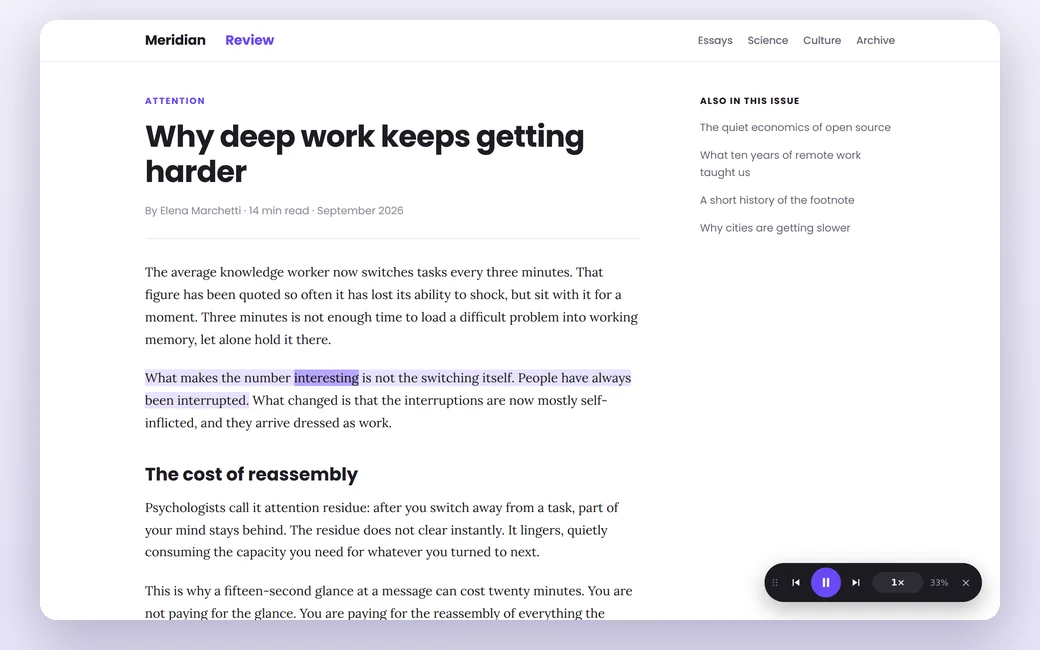
The highlight follows the voice on the page itself.
- Start anywhere. Hold Alt and click a paragraph to start from it.
- Read only a selection. Select text, right-click, choose Read selected text aloud.
- PDFs. PDFs open in the extension's own reader with the same player.
- Keeps going in the background. The voice continues when you switch to another tab.
- Any voice you have. Choose from Chrome's voices and the ones installed on your computer, including offline voices, at up to 3× speed.
Read Aloud Extension is free and needs no account.
Add to ChromeWhich one should you use?
- Reading mode is enough if you listen now and then, the page opens well in reading mode, and you like Google's natural voices.
- Listen to this page is the quickest built-in option when it is offered, especially on Android.
- Read Aloud Extension fits when you want the highlight on the original page, to start from a specific paragraph, to hear just a selection, to listen to PDFs, or to keep listening while you work in another tab.
Nothing stops you from using more than one. The built-in options cost nothing to try, and the extension adds the cases they don't cover.
If you need a full screen reader
The options above read content to you. If you need to hear every control and menu as well, use the screen reader that comes with your system: Narrator on Windows, VoiceOver on macOS, or ChromeVox on ChromeOS.
Try it on the next PDF or article you open.
Add to Chrome